
Audio and translation
How to get bilingual captions for Zoom and Teams classes
Capture meeting playback, set languages, and follow bilingual captions with guidance on headphones, sharing, and saving.
Applies toDesktop browsers · Windows / macOS
Environment and verification scope
This guide follows the current feature implementation and existing setup guidance. Images identify screenshots or illustrations. Complete recording workflows have not been revalidated across Windows, macOS, and Android for this guide. Sharing options, permissions, and playback restrictions depend on your actual environment.
CaptionWise can capture supported meeting playback from your computer and display original and translated captions while you attend Zoom or Teams classes. This workflow uses system audio. It does not describe adding a bot to the meeting or reading its chat.
Prepare before class
Confirm that you can hear the lecturer in Zoom or Teams before opening CaptionWise. Prepare your course project and source and target languages. Headphones can reduce speaker playback being picked up again by the meeting microphone.
A browser meeting and a desktop meeting app play in different places. Choose a supported capture source that contains the actual sound. Follow the course, organization, and participant requirements for recording and processing the session.
Set meeting audio and translation languages
- Select System audio in CaptionWise. Expected result: capture is aimed at computer playback.
- Choose source and target languages and the course project. A class taught in one language can use one-way translation.
- Start live translation and grant sharing and system permissions. Use Setup guide in the web app to check how to include system audio.
- Return to the meeting and compare captions with a short passage of clear speech.
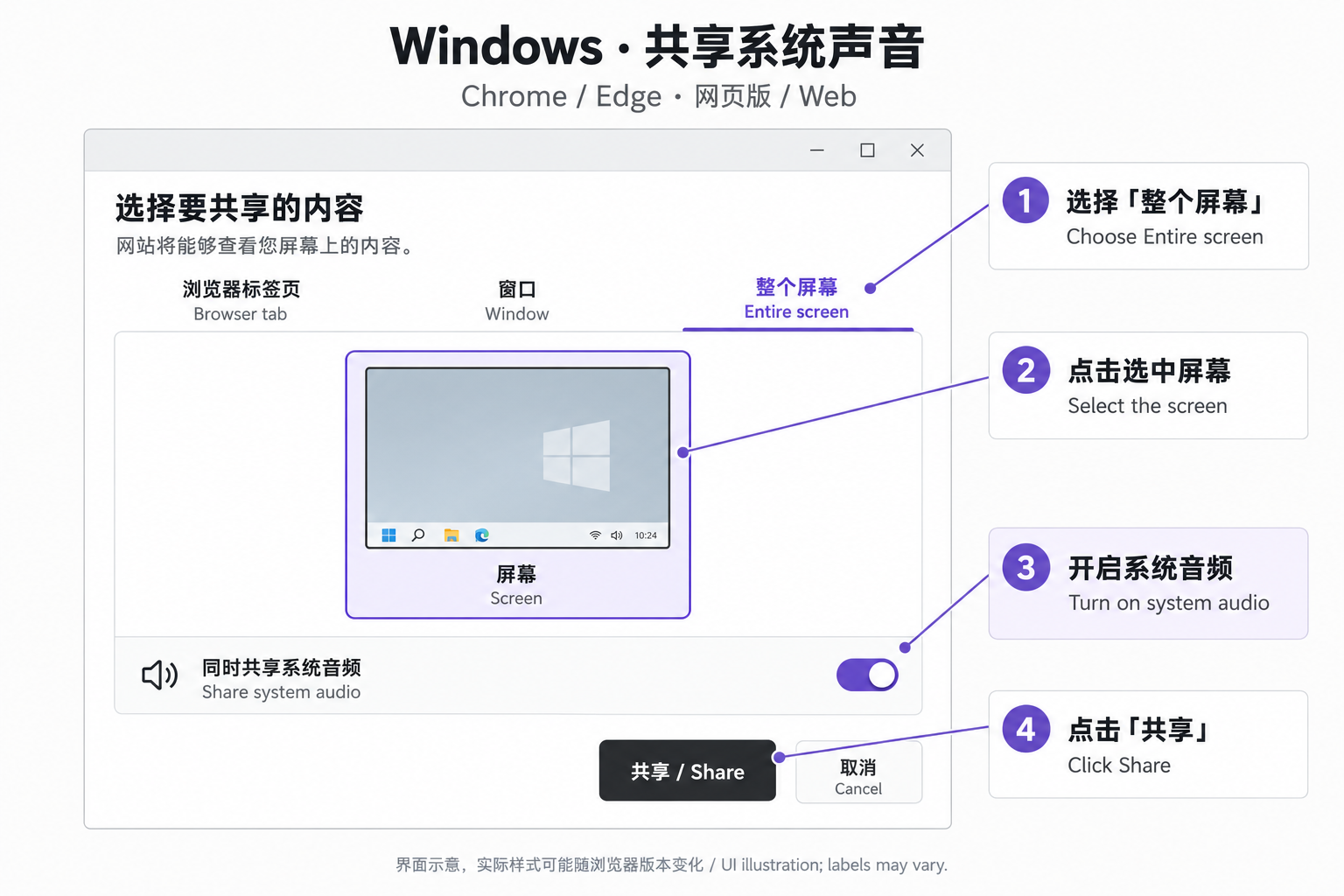 Illustration of sharing meeting playback on desktop webUI illustration from the in-app setup guide. Labels and options may vary by operating system and browser version.View full image (new tab) ↗
Sharing another browser tab may not capture a meeting playing in the desktop app. Select a source that includes the intended sound and is supported in your environment.
Keep captions beside the class
Place the meeting and CaptionWise side by side, or enable supported floating captions. Desktop uses an independent window. Web floating captions require Document Picture-in-Picture, and the control appears only when available.
Choose bilingual, original-only, or translation-only text. Follow translations for the explanation and check original wording for technical terms. See floating captions setup.
Distinguish playback from your microphone
System audio mainly captures computer playback. Do not assume it also contains every word spoken into your own microphone. Select the microphone for in-person input; configure two different languages and enable two-way translation when that is the intended task.
For duplicated text, check speaker playback reaching a microphone, multiple recording sessions, or the meeting playing on several devices. Diagnose the audio source rather than changing translation languages to fix an echo.
Check interruptions during class
- No original captions: confirm that meeting playback is audible, then inspect sharing and the selected audio source.
- Sharing stopped or permission withdrawn: restore audio access before using the available resume control.
- Captions without notes: open the notes panel and follow the AI notes guide to check content and generation state.
- A mobile browser pauses after switching apps: keep mobile web recording in the foreground. Desktop sharing instructions do not establish background recording support on a phone.
Save and review after class
End recording and wait for saving. Open it in the course project, check captions against the audio, and use notes to organize key ideas. Verify definitions, numbers, formulas, and assignment requirements against the course materials.
For the sharing procedure, see computer audio translation. For persistent missing text, use the no captions checklist.