Troubleshooting
Why are no captions appearing?
Check audio source, permissions, input, connection, and languages, and distinguish missing captions from missing translations or notes.
Applies toWeb · Windows / macOS · Android
Environment and verification scope
This guide follows the current feature implementation and existing setup guidance. Images identify screenshots or illustrations. Complete recording workflows have not been revalidated across Windows, macOS, and Android for this guide. Sharing options, permissions, and playback restrictions depend on your actual environment.
First identify what is missing: original text, translated text, floating captions, or updated notes. These belong to different features. Start with audio and permissions, and check the result after each step.
Identify the missing content
- No original captions: prioritize capture, authorization, actual speech, and connection state.
- Original without translation: inspect target language, translation status, and network feedback.
- Main page has captions but the overlay does not: check the window, display mode, and platform support.
- Captions work but notes do not update: inspect the notes panel, accumulated content, recording length, and AI service state.
Keep the displayed error information. Preserve existing captions and recordings using the available save controls before leaving the app to troubleshoot.
Check the audio source
Choose Microphone for in-person classes or conversations, and supported System audio for computer playback. Confirm the selection before starting.
Use a short passage of clear speech. Check the level preview if offered, then compare original captions with that speech. Background music or a silent video is not a useful speech recognition test.
A meeting in a desktop app may not be included when sharing a different browser tab. Choose a source that contains the intended audio.
Check permissions and shared audio
Browser sharing must include audio. The in-app Windows guide shows Entire screen, selecting a screen, enabling system audio, and Share. Cancelling or sharing only a picture will not supply the required sound.
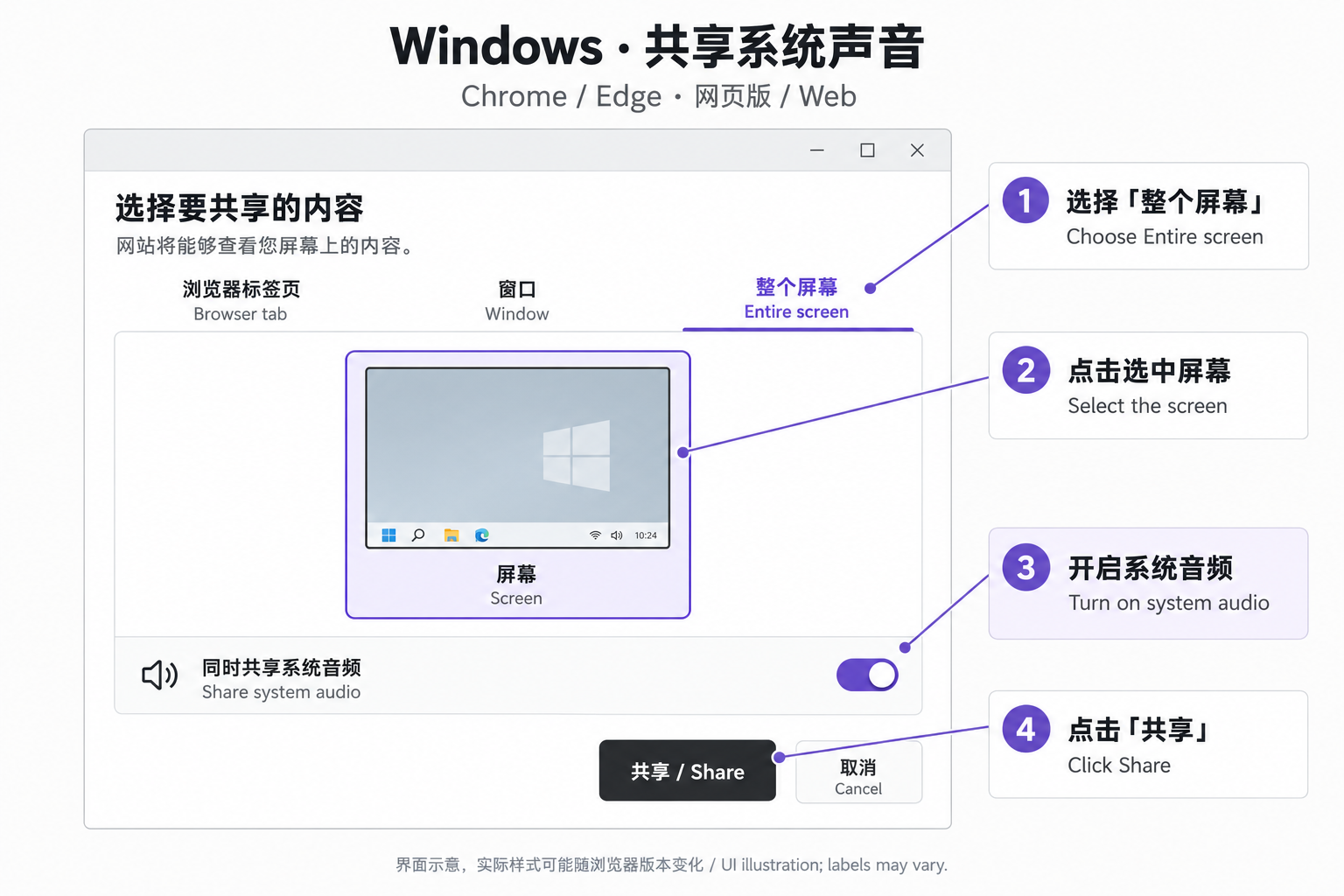 Illustration of including audio in Windows screen sharingUI illustration from the in-app setup guide. Labels and options may vary by operating system and browser version.View full image (new tab) ↗
macOS browsers and desktop clients need their own permissions. On Android, microphone, screen-capture, and overlay permissions are separate. Some playback apps block capture, which repeated permission prompts cannot resolve.
See computer audio translation for the full setup.
Check connection and recording state
Confirm recognition has started rather than waiting for permission, connecting, or paused. Follow the displayed network, allowance, or permission issue. Avoid starting simultaneous recordings as a diagnostic method.
After an audio track ends, sharing stops, permissions change, or a device changes, restore the audio source before using the offered resume control. Keep mobile browser recording in the foreground.
Expected result: a new passage of clear speech produces original captions. Audio during an interruption may not have been recorded, so replay or repeat relevant material if needed.
Check translation when original captions work
Confirm the target language. Two-way translation requires two specific, different languages; automatic source detection cannot enable it directly. Check whether the display is set to original-only.
Follow the actual translation or network error. Working original captions are a reason to inspect translation before replacing the microphone.
Check missing overlay or notes separately
Keep the floating window open on a supported platform. Translation-only mode can wait for a translated result. See floating caption setup.
Notes update according to finalized captions and generation conditions. Recordings under one minute do not generate notes. Open the panel and inspect waiting, updating, or failure feedback, preserving existing content. See lecture notes.
Save results and report useful details
End the session, wait for saving, and check audio and captions in the project. If the issue remains, record operating system, browser and client versions, selected source, occurrence time, and the displayed error. Use the app's support or diagnostic entry.
Do not include login credentials, keys, private recordings, or lecture text in public reports. Describe the operation and error state without disclosing private content.