
Audio and translation
How to translate computer audio in real time
Choose system audio, grant sharing permissions, and check capture on Windows and macOS browsers or desktop apps.
Applies toDesktop browsers · Windows / macOS
Environment and verification scope
This guide follows the current feature implementation and existing setup guidance. Images identify screenshots or illustrations. Complete recording workflows have not been revalidated across Windows, macOS, and Android for this guide. Sharing options, permissions, and playback restrictions depend on your actual environment.
CaptionWise can turn supported system audio from a course, meeting, or video into original and translated captions. Select System audio, then grant the required capture permission. The shared source must actually include audio.
Check your environment first
- Web capture depends on your desktop browser and operating system. Open Setup guide on the preparation page for the current guidance.
- Windows and macOS desktop apps also offer system audio capture and need their own permissions.
- Prepare content you have permission to play and process. Live recognition and translation need internet access and available account allowance.
- Mobile browsers mainly use microphone translation. The desktop sharing steps below do not describe mobile capture.
Choose audio, languages, and a project
- Sign in, open live translation, and choose System audio under Audio source. Expected result: that source is selected.
- Choose source and target languages. For an English class with Chinese captions, select English to Chinese. Enable two-way translation only when needed, using two specific, different languages.
- Choose Save to project. If you have course PDFs, prepare terminology in that same project before starting.
- Keep the playback app open, select Start live translation, and follow the capture authorization prompts.
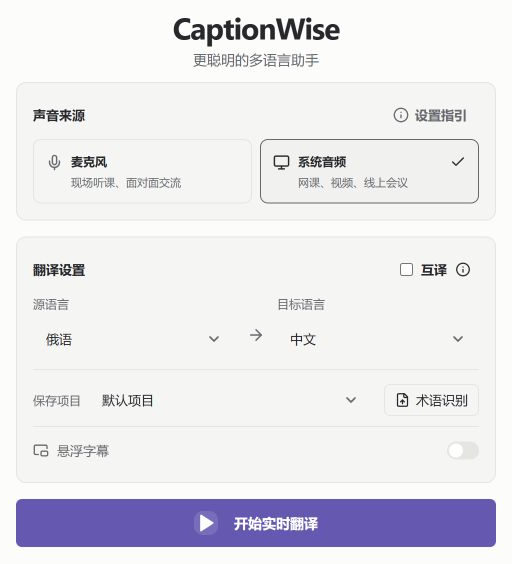 Translation preparation: audio source, languages, and save projectScreenshot · Web app on Windows / Edge · Chinese UI · 2026-10-27View full image (new tab) ↗
The Chinese UI screenshot shows the actual controls with Russian to Chinese selected. Choose the languages used in your own class before starting.
Include audio in the browser share
The in-app Windows guide shows Entire screen, selecting a screen, enabling Share system audio, and then Share. If your browser instead offers suitable tab audio capture, confirm that the selected source contains the audio you need. Sharing a picture without an audio track cannot produce captions.
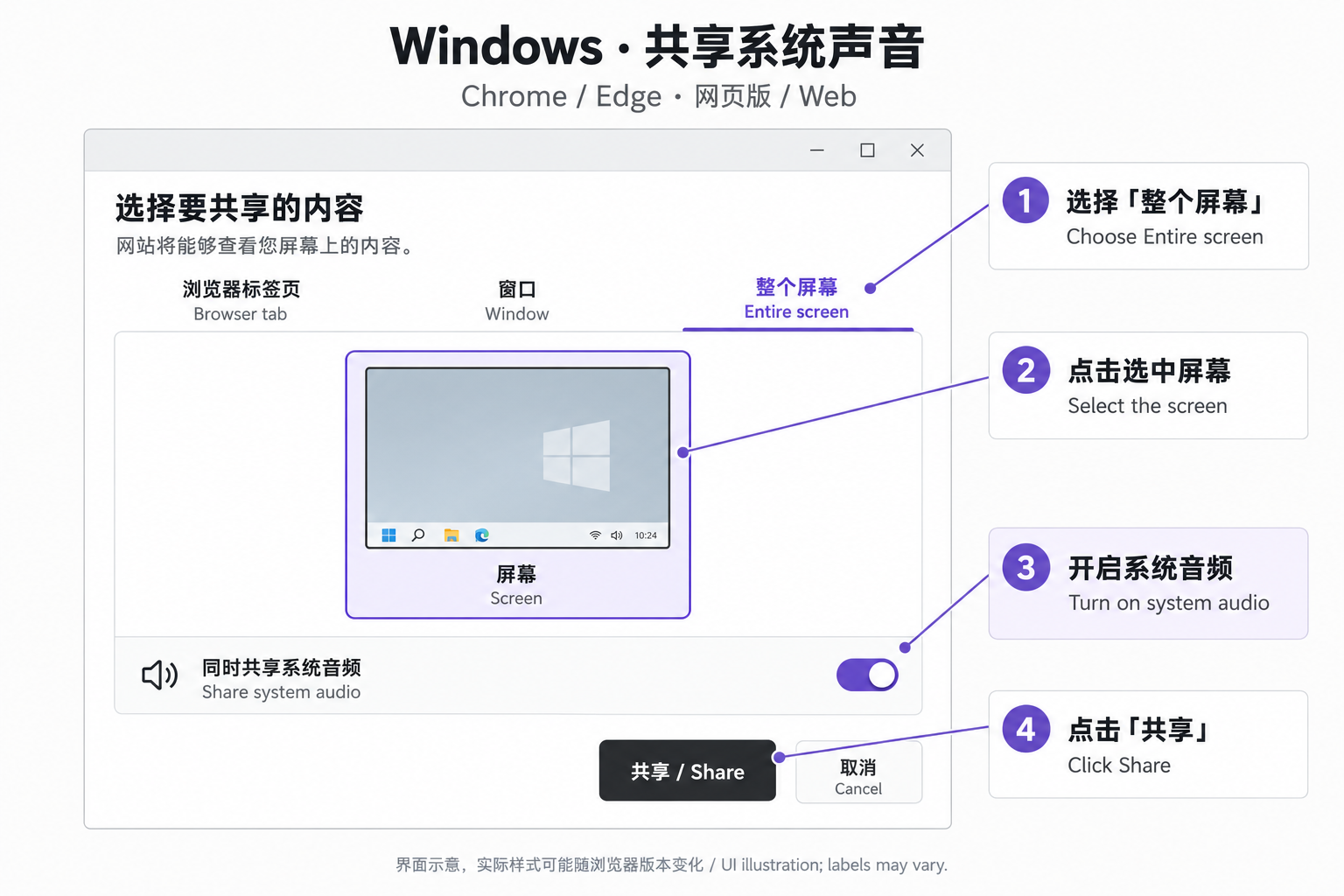 Windows web system audio sharing illustrationUI illustration from the in-app setup guide. Labels and options may vary by operating system and browser version.View full image (new tab) ↗
For macOS web capture, check the conditions in Setup guide first. The current in-app illustration describes macOS 14.2+ with Chrome 142+, including permission for the browser to record system audio. Options in other combinations may differ.
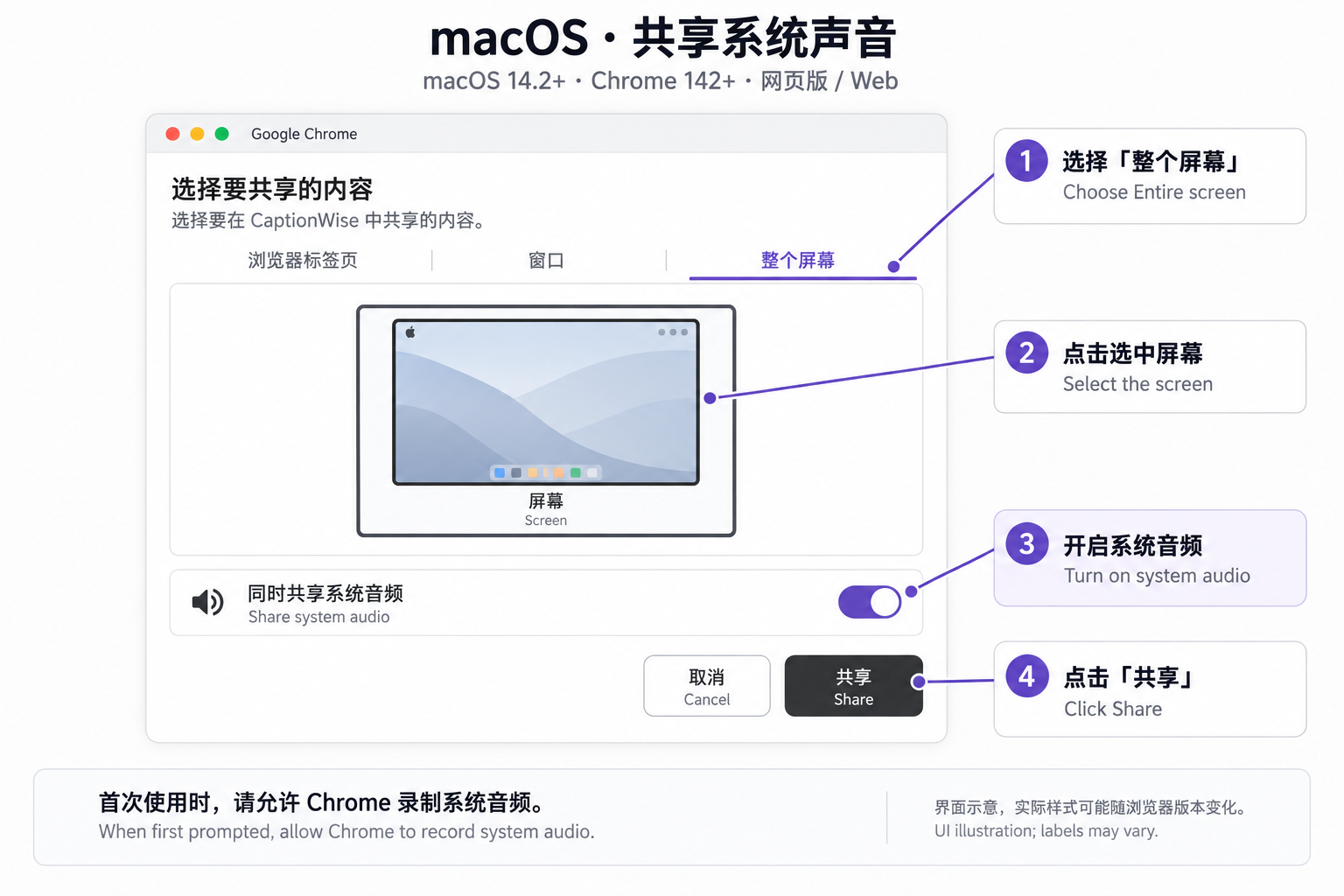 macOS web system audio sharing illustrationUI illustration from the in-app setup guide. Labels and options may vary by operating system and browser version.View full image (new tab) ↗
These are existing in-app illustrations, not evidence of a new recording test on both systems. Browser and desktop app permissions are separate.
Confirm that the intended audio is captured
Play a short passage of clear speech. When the preparation page provides an audio level preview, check it before starting. Then compare the original and translated captions with the actual playback.
Headphones can still work with supported system audio capture. Avoid adding another microphone recording simply to pick up your speakers. Check the selected source first, and verify capture again after changing playback apps or output devices.
If you can hear audio but see no captions
- No original text: check the source, shared audio option, playback location, and any outstanding permission prompt.
- Original text without translation: inspect target language, connectivity, and the displayed error separately from audio capture.
- No shared audio message: choose the shared source again and include audio. An app that blocks capture may remain unavailable.
- No relevant sharing option: check current setup guidance or use the desktop app for your system. Repeating permission prompts cannot establish platform support.
See the no captions checklist for a complete diagnostic sequence.
End and find the recording
End the session and wait for saving to finish. Open the recording in the selected project and check duration, captions, and audio. Verify terms, numbers, and formulas against the original sound. Cross-device review requires completed cloud sync.
Continue with Zoom and Teams class setup or live translation requirements.