
Classes and notes
How to prepare course terminology from PDFs
Upload PDFs to the correct project, check extracted terms, and learn when they apply to recognition.
Applies toWeb · Windows / macOS · Android
Environment and verification scope
This guide follows the current feature implementation and existing setup guidance. Images identify screenshots or illustrations. Complete recording workflows have not been revalidated across Windows, macOS, and Android for this guide. Sharing options, permissions, and playback restrictions depend on your actual environment.
Upload course PDFs to the correct project so CaptionWise can extract vocabulary for subsequent recognition. Processed terms apply when recognition next starts or resumes. Selecting a file does not upload it, and terminology guidance does not guarantee perfect recognition.
Prepare the file and project
The current entry supports PDF, up to 30 MB per file and 10 files per project. Export slides from formats such as PPT to PDF using the original application. Use materials you have permission to process.
Choose or create the course project, such as Statistics, and confirm that the next recording will use that same Save to project selection.
Upload on web and desktop
- Open Term recognition beside Save to project on the preparation page, or enter reference materials from the project.
- Select Choose course or reference materials and choose a PDF. Expected result: its name, size, and Pending upload status appear.
- Check File project. Selecting a project in the drawer does not change the recording's save project; verify both separately.
- Select Upload and save. After upload, inspect the file under Existing files.
- Wait for Extracted, check the term count, and expand the file if you need to inspect the terms.
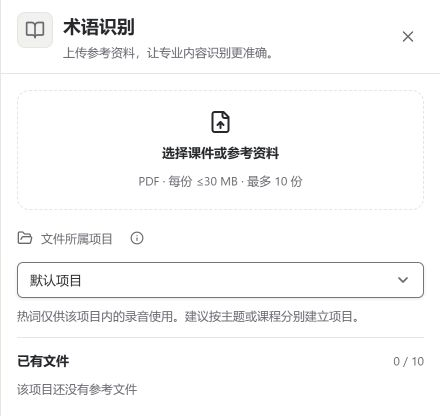 Term recognition drawer: choose a PDF and check its projectScreenshot · Web app on Windows / Edge · Chinese UI · 2026-10-27View full image (new tab) ↗
The Chinese UI screenshot shows an empty Default project. After choosing a PDF above, select Upload and save at the bottom of the drawer, then wait for processing.
Use Replace or Remove before submitting a mistaken file. Closing the drawer discards an unsubmitted selection; uploaded reference files remain with their project.
Find reference files on Android
The Android preparation page provides Save to project and Reference files in Project & reference files. Choose the course, open Reference files, select the PDF, and check processing afterward.
The Android screen differs from the web drawer. Follow the actual controls while preserving the same requirements for format, ownership, and completed processing.
Check when the terms apply
After extraction, start a recording in the same project. If already recording, new terms apply when recognition next starts or resumes; upload completion does not instantly update an active connection.
Expected result: the project lists the extracted reference file, and the next recognition connection uses that project's vocabulary guidance. Verify results against actual speech rather than treating a file status as evidence of transcription quality.
Troubleshoot upload and extraction
- Cannot select the file: check PDF format, the 30 MB limit, and the 10-file project limit.
- Still pending upload: confirm Upload and save was selected.
- Upload failed: keep the selected file, address the displayed network or permission issue, and retry manually.
- No extracted terms: check that the PDF contains readable course text and inspect processing feedback. Do not assume a scanned image will always yield terms.
- No apparent recognition improvement: check the recording project, completed processing, and whether recognition restarted or resumed, then review audio quality and context.
Verify and reuse after class
Check names, technical terms, numbers, and formulas against captions, audio, and materials. A PDF supplies recognition vocabulary; it does not make every answer about the course reliable.
Deleting a reference stops its use when recognition next starts or resumes. Continue with the classroom guide or AI lecture notes.